

Update your Windows applications with WinGet Updater.
Check for available updates and install them via a simple interface. WinGet Updater uses WinGet—the Windows package manager—to help you check for and update your applications.
For Windows 10 and Windows 11. Requires WinGet to be available on the system.
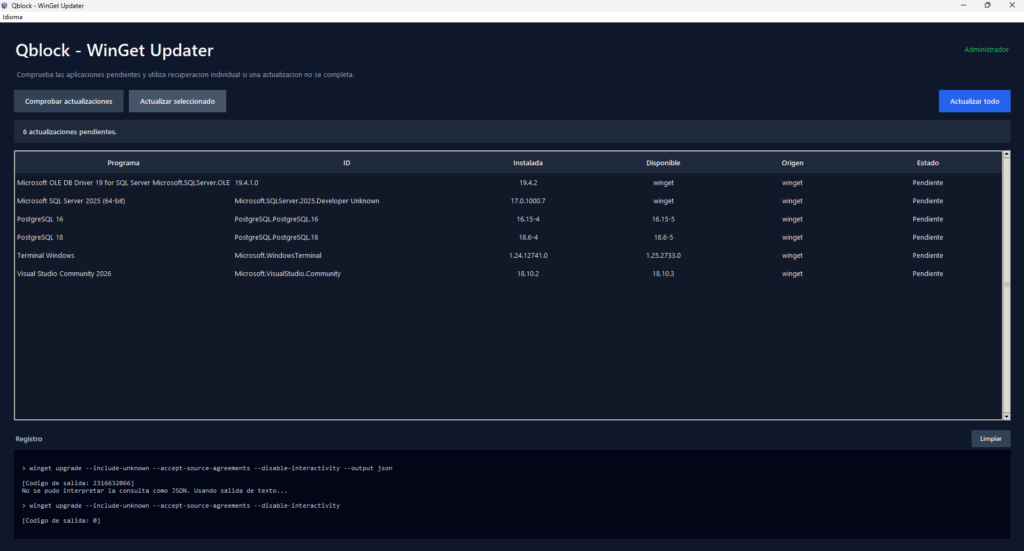
A clear way to check for pending updates
WinGet Updater is a Windows desktop application that allows you to check which applications have updates available via WinGet. In the list, you can view the program name, package ID, installed version, available version, and operation status.
You can update a selected package or initiate a general update. Once the latter completes, the application rechecks which packages remain pending and may attempt to update them individually.
Key functions
Check what can be updated.
Upon startup, WinGet Updater checks for available updates and displays them in a list so you can review the packages and their versions.
Choose how to update
Update a specific application or run a general update. If some packages remain pending, the application attempts to process them individually using their exact package identifier.
Check the transaction log.
Review the executed commands, their output, and their exit codes from the application log. This helps to understand the result of each operation.
Interface in Spanish or English
The application starts in Spanish or English, depending on the Windows display language. You can also change the language from the application menu.
How to get started
- Check that WinGet is available on your computer.
- Download and open WinGet Updater.
- Check the list of available updates.
- Select an application to update it or use the general update option.
- Check the log to see the result of the operations.
Note:
Windows may request administrator permissions to perform updates. Follow the User Account Control (UAC) prompts and review messages from WinGet or the installers when they appear.
Requirements
- Windows 10 u 11.
- WinGet available on the system.
- Administrator permissions when required for update operations.
Frequently Asked Questions
Does WinGet Updater replace WinGet?
No. WinGet Updater uses WinGet to query and execute update operations; it does not replace it.
¿La aplicación instala las actualizaciones automáticamente en segundo plano?
No. WinGet Update allows you to check for available updates and initiate operations from within the application.
Why might an update remain pending?
The result depends on WinGet, the package source and the installer of each application. Some operations may require interaction or may not complete. Check the log and any messages that appear for more information.
Do I need an Internet connection?
Checking for and installing updates may depend on the availability of sources and installers. An Internet connection may be required for these operations.
Check your pending updates.
Download WinGet Updater and use WinGet from a Windows desktop interface.
WinGet Updater invokes WinGet and does not control the behavior of third-party installers. The availability, compatibility, and completion of each update depend on WinGet, the package source, and the corresponding installer. Review any interactive operations and displayed messages. Use of the application is at your own risk.

